Showing posts with label tricks. Show all posts

Monday, February 7, 2011

9 tricks to speed up computer

Over time, the speed of computers with Microsoft Windows can decrease. This appears as the system taking more time to respond to a user’s actions like opening files, folders, surfing the Internet and other tasks. However, there are things you can do to speed up your computer.

The following is a list of ways you can improve your computer's performance. These steps are intended to be used in order. The key is to do the simplest and least invasive thing first until your system starts responding better.

If you want to improve the speed of your computer, that’s great. However, above all, do no harm and beyond the scope of this Windows forum, ask for help from those you know if you get in over your head. Remember: you have time. You can stop most processes I discuss without causing harm. Caution and common sense go a long way when working with computers; problems are often much easier to fix than they appear.

Steps to Speed Up Your Computer’s Performance

1. Make Sure Your Hardware is Sufficient

Above and beyond everything you can do with software to optimize the function of your computer, making sure you have the proper hardware to support Windows is critical.

2. Clean Your Desktop

Is your Windows Desktop dotted with files? Have you noticed that your computer has been running slower and slower? Do you see the hard drive light often flashing while you wait for the computer to respond to an action? There are steps you can take to fix it. Read this article.

3. Scan Your Windows System for Errors

An operating system is a collection of files that perform different functions. It is possible, over time, that one or more of these system files has changed or become corrupted. If this happens, the speed of your system may decrease. By using a utility called “System File Checking”, it will inspect these files and correct any problem it finds.

4. Scan for Viruses, Spyware and Adware

Every Windows computer is vulnerable to viruses. Viruses are nasty little programs that cause both major and minor problems for users.

Spyware and Adware are programs created by companies to find out more information about customers, so they can better market products to them. Usually these programs are not created for malicious purposes. Spyware and Adware can load into computer memory and slow it down.

Periodically scanning and removal of Viruses, Spyware and Adware is a great way to improve computer performance.

5. Uninstall Unused Programs

Over time, you may have accumulated programs on your computer that you do not use. When a program is installed, it creates connections between the program and the operating system. Even if you don’t use these programs, they can slow down your system. If you have the original program’s installation disk or file, removing programs will free up space on your computer and may speed up your system's performance.

6. Adjust Visual Effects for Better Performance

Windows provides a number of interesting visual effects including animated windows and fading menus. If you do not have enough operating memory (see above number 1), these effects can slow down your computer. Adjusting or reducing visual effects can make a difference.

To speed up Vista computers in particular you can disable features and function that are not used. For more information, read "How to Speed Up Windows Vista."

7. Don’t Automatically Start Programs

Programs use operating memory (RAM, also called system resources). Unless you always use these programs, you can keep them from loading at Windows startup and speed both the booting of your computer and its performance.

8. Defragment Your Hard Drive (After you have tried everything else)

The more information and programs you have on your computer, the more it is likely that Windows has placed parts of the same file in different locations on your hard drive. It may do this for hundreds of files and programs, depending on how much space is available. Defragmenting the hard drive places all information for each file in one place. The result can be a faster computer experience.

Important Note: Before you even try this, backup all your work onto a different computer, hard drive, CD or disk. Also, you should only do this if you have a reliable source of power for your computer. Doing this when there is a brown out or power problem in the neighborhood, is not a good idea. If a computer turns off while it is defragmenting a drive, it will create more problems than not defragmenting it in the first place.

9. Reinstall the Operating System and Programs

If you have done all the above steps and your computer does not become more responsive, you might consider reinstalling the operating system and programs. This is a scorched earth option - basically you backup all your data and user settings, wipe your hard drive clean and re-install the operating system with your original disks. Next, install all your favorite programs and restore all your data and user settings.

The nice thing about doing this is that you essentially have a new computer, free of years worth of software and registry changes, additions and errors that can turn a fast rabbit of a Windows computer into a slow turtle. The bad thing about this choice is that it takes time and planning to do it correctly. If your PC is 3 to 4 years old and continues to run slower than it did when you purchased it, this might be the only action that will make a significant difference.
Read More

Friday, January 28, 2011

tricks Quick Access Toolbar on Office 2007

Start the 2007 version of Microsoft Office introduces interface called the Ribbon. Here the user is not guided solely by a row of menus, but through several tabs containing rows of icons are grouped by "similarity"function.
For users who want quick access to commands that are often given, the Office provides the Quick Access Toolbar is located on the right of the Office Button. Here the standard consists of the command Save, Undo and Redo.

With minor modifications, existing commands can be added or subtracted according to user habits.
For example, there is a kind of "habit"in MS Excel that whenever going to do printing, it first needs to be previewed via the Print Preview command. In the Ribbon interface, these commands are accessible via the Office Button> Print> Print Preview.
To be more practical, the Print Preview command can be added in the following manner:

1.
Right click on Office Button. Select Customize Quick Access Toolbar.

2.
In row Popular Commands (under the Choose commands from), select Print Preview, then click Add to add it to the Quick Access Toolbar (or click Remove to delete it). Click OK.

Print Preview command will then appear in the rows of the Quick Access Toolbar.

If there are errors of placement or selection of the command, the command can be immediately deleted by right clicking on it and choose Remove from Quick Access Toolbar.

Location of the Quick Access Toolbar can also be moved to the bottom of the Ribbon, with a right click on the Office Button and select Show Quick Access Toolbar Below the Ribbon.

The interface will change as follows:

To restore it to its original location, the steps are the same as above but by choosing Show Quick Access Toolbar Above the Ribbon.
Read More

how to fast shutdown your PC

You never listen to music through the computer until you fall asleep? Or you ever watch TV Tuner TV to fall asleep and the computer stays on when you sleep? This will not only make your PC work continuously will also make your electric bill swell!

Do not worry, I will learned some tricks to prevent it, without installing any software you can do it in a breeze, let's get started:

1. Click the Start menu> Run or press window + r windows

2. Type: tsshutdn XX / powerdown
NB: XX = time that you want in seconds itungan

Suppose you want to set the timer for 1 hour, then you just type in tsshutdn 3600 / powerdown

3. If so, click OK, a confirmation window will appear with the message:
"System is shuting down in 3600 seconds"

4. Click OK on the pop up window

5. Minize DOS window which appears (not a DOS window on CLOSE. If at CLOSE, the timer will not run)

Good luck
Read More

Good trick Create a Password

Password is one way to secure a computer system. This computer system can include applications, databases or operating system. Therefore, assign a password should not be arbitrary and must consider certain things. Password must be made by considering the following points: *. At least the password character length is 7 (seven) characters. You can also create a longer password again for security. *. Using at least 1 (one) character symbols on the sequence of characters your password
*. If you apply the system password history, then make sure your new password is always different from previous passwords
*. Your password should not contain the name or username
*. Do not use words that are commonly used in karaktar password. This includes the words used in the dictionary

Some examples of strong passwords for example as follows.

*. a4 $ Jhi &]
*. i%uA">3k> i% UA
*. O @ u # 5nQ

Password protection system is actually the weakest in the computer system. Therefore choose a strong password is a must. Why is that? Password cracking tools become more sophisticated in his attempt to disassemble the password, plus also a computer used in password cracking, the better the performance. Password that previously took a week to crack, so this time can be cracked in just a few hours.

Software to crack passwords using various common approaches: a smart guess (intelligent guessing), dictionary attacks (dictionary attack) as well as automation that tries to try to use a combination of characters. If given enough time, then the automated method can crack any password. But if the password used is very strong, it will require a very long time to solve.

So quick tips on making good passwords and strong. May be useful for you all.
Read More

Monday, January 17, 2011

speed 999x for windows

Introduce: Speed Gear (Speeder XP) can be used to adjust your Windows operation system speed. Speed Gear (Speeder XP) Windows. All software will change their speed after you adjust the speed rating in Speed Gear.Gear. You can define the hotkey, you can press the hotkey to pop up the window, speed up, speed down, or adjust to the appointed speed.

Feature List:
  • Adjust your Windows operation system speed.
  • Give you brand new experience while playing games.
  • All software will change the speed after you adjust the speed rating.
  • Speed up windows 9x, me, nt, 2000 or xp, almost all the windows os.

User Opinions: “WOW!!” I passed by this program dozens of times so the other day just out of boredom I had a look at it. . WOW!! My 1,600 mhz processor is behaving like an 3,200 mhz and I feel like I’ve bought a new computer. Don’t be fooled by the simple interface -this is REALLY POWERFUL STUFF. Gains are as great as overclocking but without the risk. Windows open automatically, games play fast and I can do things on my computer like have transparency without losing too much power. When you buy this you have to send in your machine code to get it registered as well as pay.The guy who made this knows it’s worth. -Dave -Dave


“It perfect! I can’t believe it before I try it…” I tried the speeder XP (Speed Gear formerly called Speeder XP) and I found that it is realy helpfull when I want to go from site to the other and it opens the web very fast realy. Download Free SpeederXP Trial Purchase SpeederXP Online


sources : warkopcakmat
Read More

Sunday, January 16, 2011

how to block copy data from computer to flash or usb

How to secure your computer so that data can not be copied to the flash do the following

1. Open REGEDIT
2. HKEY_LOCALMACHINE \ SYSTEM \ CurrentControlSet \ Control

3. In CONTROL folder, type -> Edit> New> Key
The new folder name -> "StorageDevicePolicies"

4. "StorageDevicePolicies", type Edit> New> Dword (32-bit)

5. The new key name: "WriteProtect"

6. Click 2x Key WriteProtect it, then change the Value Data so 1

7. Restart

To open a protection for the data can be copied to the flash by changing the value in write-protected key to 1.

source
Read More

Overclocking Motherboard

Overclocking is the process of running a computer component at a higherclock rate (more clock cycles per second) than it was designed for or was specified by the manufacturer, usually practiced by enthusiasts seeking an increase in the performance of their computers. Some purchase low-end computer components which they then overclock to higher clock rates, or overclock high-end components to attain levels of performance beyond the specified values. Others overclock outdated components to keep pace with new system requirements, rather than purchasing new hardware.
People who overclock their components mainly focus their efforts on processors, video cards, motherboard chipsets, and random-access memory (RAM). It is done through manipulating the CPU multiplier and the motherboard's front side bus (FSB) clock rate until a maximum stable operating frequency is reached, although with the introduction of Intel's new X58 chipset and the Core i7 processor, the front side bus has been replaced with the QPI (Quick Path Interconnect); often this is called the Baseclock (BCLK). While the idea is simple, variation in the electrical and physical characteristics of computing systems complicates the process. CPU multipliers, bus dividers, voltages, thermal loads, cooling techniques and several other factors such as individual semiconductor clock and thermal tolerances can affect it.

source
Read More

Friday, January 14, 2011

Fix Acer Aspire 7220 Failed to Boot

The problem in booting can be occurred on Acer Aspire 7220. The cause might be vary but the important thing is how to fix it. This is a case from a user of Acer Aspire 7220. At first, he tried to hit the power button, but he noticed that the power lights just flashed for a while, a flash per second. Then he did various actions like removed the RAM-sticks, battery, the HDD and the DVD reader one by one. However, no change happened. Afterwards, he disabled the flash BIOS from a CD. As a result, the fan spinned in high blast and the DVD reader kept on and those two tools1 did not off at all.
or you who has the similar Booting probem, here the solutions you should try:
1. Boot the laptop without plugging charger.
2. Boot without the battery in it.
3. Boot with both of charger and battery.
In addition, make sure you press and hold down the Acer Aspire 7220 power button in 2-3 seconds after the flashing light in every step. Usually, after 10 minutes do the three steps above, your laptop will boot soon. Hope it might help your booting problem!


source
Read More

Thursday, December 30, 2010

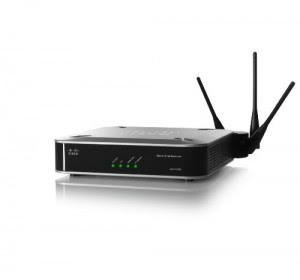
How to improve your wireles access point security

It’s important to remember that a wireless signal is broadcast and accessible to anyone who has the technology to receive it. By default all traffic is encrypted that travels between the 2WIRE 2700HG-B and
any connected computer or wireless device. Encrypting the wireless traffic makes it more difficult for an unauthorized individual to extract information if your wireless signal is intercepted. The default type of encryption (WEP-Open) used by some wireless access points can be easily broken and decoded.

Data transmission through wireless channels are vulnerable to piracy. Anyone who is in the coverage area can access a wirelss network. In order not meudah hijacked another person, is required enkrispi to randomize the data sent on the wireless network. Wi-fi equipment are now providing sekurity technology options that can be used as needed.
What you have to do now is activate the security feature. following ways to activate it:
• Open your browser, then log into the IP access point.
• In the basic settings, go to wireless – wireless settings.
• Give a checklist on the options enabled wireless security
• On the security tyepe select the type of security that you want to use.
• At the security option, select the security model, if you do not want to elaborate just select Automatic.
• In the WEP Key format, specify the type of key that will be used, whether ASCII or Hexadecimal. Keuy in the form of letters to select ASCII.
• In the WEP Key field, enter the access point.
• Specify the encryption on the Key Type.
• Click Save to save it.
IT security needs to use a layered approach. While no single layer of security is enough to withstand every attack, each additional layer serves to further harden your system and discourage would-be attackers
and free-loaders. Here are six settings on your router which, if properly configured, will better protect your network, your computers, and your data.
1. Change the default password for the administrator account on your wireless router or access point. This is absolutely essential and should have been the very first thing you did after you unboxed it.
Don’t use a word in the dictionary or anything easily guessed.
2. Limit access to your wireless LAN by using MAC address filtering. A MAC address (also called the physical address) is an identifier unique to each network adapter. MAC address filtering involves looking up the MAC address of each device that will connect to the WLAN and adding them to a list in the router’s control panel. MAC addresses can be spoofed, so filtering shouldn’t be the only security method used.
3. Change your SSID (network name). A router’s default SSID (Service Set Identifier) can be used to identify your hardware, which could help a hacker determine the default administrator password (see step
1). A default SSID also suggests that the network was poorly configured, making it appear to be an easier target. Change it to something you and your family would recognize (your pet’s name, for example), but that’s not publicly identifiable (don’t use your name, your address, etc.).
4. Don’t disable SSID broadcasting Disabling SSID broadcasting will prevent casual browsers from finding your network, but it also means you will have to manually enter the name of your network on each device and your laptop will periodically ping your SSID. Not broadcasting your SSID does nothing to secure your network, it just makes it less obvious to your neighbors.
5. Use the strongest encryption form supported by your router and all of your other devices. The best choice is WPA2 with the “TKIP+AES” algorithm, which is the newest type of wireless encryption and
provides the highest level of encryption available. WPA2 has been available on most devices manufactured in the past few years. WPA-PSK, also called WPA-Personal, encryption is the next best, and 128-bit WEP is the weakest level of encryption and not very good, but better than nothing. Use a strong password, ideally a string of at 20+ random alpha-numeric characters.
6. Disable remote administration. The ability to remotely administer your WLAN router via the Internet should be turned off unless you absolutely need this. It is usually turned off by default, but it’s a good idea to check. The only downside to this is that you will have to physically connect a computer to the router in order to configure it, which isn’t necessarily a downside at all.
Hiding In the Network Access Point Wi-Fi
On the Wi-Fi access point SSID broadcast will make a regular basis, this feature is enabled for hot spots. Access points can be hidden to prevent people who do not want to know there is a wireless network in
your area.
To hide access points within the Wi-Fi in conducted in the following steps :
• Open the browser, then log into your ip access point
• In the basic settings, go to wireless – wireless settings.
• Checked uncheck the option Enable SSID Broadcast.
• Then click the save button.
Read More

how to upgrade computer memory

Is your computer performance has begun too low? Many things can cause the performance of a computer can be reduced significantly. Some causes include hard disk capacity is full, too many temporary files from the Internet, many computer viruses that attack your computer system, or computer memory may also exist in the system is not adequate when compared with the applications used on existing computers.
To overcome this, many ways that you can do to make your computer performance can return to normal. Some things you can try to restore performance your computer such as adding hard disk capacity perform regular antivirus scans, do the disk cleaning system, as well as upgrading computer memory that you currently use.

The easiest way to overcome this is to upgrade your computer memory. This is for several reasons, among them is much easier for you to do, quickly, and also can provide maximum results and also with a fairly low cost. But a few things you should consider before doing an upgrade of computer memory, such as:

  • Note the type of memory on your computer right now, whether the type DDR1, DDR2, or DDR3. This must be what you really pay attention because if something goes wrong in choosing the type of memory, usually often happens "Hang" on your computer.
  • The speed of memory you use should be the same, between the current memories with a memory that you will use to add the capacity of existing ones, such as cache memory with PC4300, PC 7200, and so on. If you combine two different types of speed cache memory that is, for example, put together with PC7200 and PC4300 then it can be ascertained it will not work, and your computer will go "hangs".
Read More

Sunday, December 26, 2010

Software to speed up your PC while playing games

Game Booster is a free software that can be used to optimize the speed of your PC and play games faster.
You only need to run this software before running the game and click the Switch To button on the application Gaming Mode and after the play be sure to click on Back to Normal Mode.

Key Features Of Game Booster:
* Give more CPU and RAM for your game, to play games faster
* This stabilizes the performance of games and play games
* It does not provide extra load on your hardware
Note: Game Booster only supported on windows xp, vista and windows 7

DOWNLOAD HERE
Read More

Free software to restore files that are hidden by the virus

Because the virus eventually must learn to restore the data files or folders that have been lost or hidden. From the results of search on google, lucky I found the software to restore files that have been hidden.
If you have the same problem, following the software and use the procedure you can download it here.
Download here
Stay extract the file, then learn how the use of ordinances. Hopefully useful!

Or you can use change attrib download here
Read More

Tuesday, December 21, 2010

Key Basic Keyboard for Windows

CTRL+C (Copy)
CTRL+X (Cut)
CTRL+V (Paste)
CTRL+Z (Undo)
DELETE (Delete)
SHIFT+DELETE (Delete the selected item permanently without placing the item in the Recycle Bin)
CTRL while dragging an item (Copy the selected item)
CTRL+SHIFT while dragging an item (Create a shortcut to the selected item)
F2 key (Rename the selected item)

CTRL+RIGHT ARROW (Move the insertion point to the beginning of the next word)
CTRL+LEFT ARROW (Move the insertion point to the beginning of the previous word)
CTRL+DOWN ARROW (Move the insertion point to the beginning of the next paragraph)
CTRL+UP ARROW (Move the insertion point to the beginning of the previous paragraph)
CTRL+SHIFT with any of the arrow keys (Highlight a block of text)
SHIFT with any of the arrow keys (Select more than 1 item in a window or on the desktop, or select text in a document)

CTRL+A (Select all)
F3 key (Search for a file or a folder)
ALT+ENTER (View the properties for the selected item)
ALT+F4 (Close the active item, or quit the active program)
ALT+ENTER (Display the properties of the selected object)
ALT+SPACEBAR (Open the shortcut menu for the active window)
CTRL+F4 (Close the active document in programs that enable you to have multiple documents open simultaneously)
ALT+TAB (Switch between the open items)
ALT+ESC (Cycle through items in the order that they had been opened)

F6 key (Cycle through the screen elements in a window or on the desktop)
F4 key (Display the Address bar list in My Computer or Windows Explorer)
SHIFT+F10 (Display the shortcut menu for the selected item)
ALT+SPACEBAR (Display the System menu for the active window)
CTRL+ESC (Display the Start menu)
ALT+Underlined letter in a menu name (Display the corresponding menu)
Underlined letter in a command name on an open menu (Perform the corresponding command)
F10 key (Activate the menu bar in the active program)

RIGHT ARROW (Open the next menu to the right, or open a submenu)
LEFT ARROW (Open the next menu to the left, or close a submenu)
F5 key (Update the active window)
BACKSPACE (View the folder one level up in My Computer or Windows Explorer)
ESC (Cancel the current task)

SHIFT when you insert a CD-ROM into the CD-ROM drive (Prevent the CD-ROM from automatically playing)
CTRL+SHIFT+ESC (Open Task Manager)
CTRL+TAB (Move forward through the tabs)
CTRL+SHIFT+TAB (Move backward through the tabs)
TAB (Move forward through the options)
SHIFT+TAB (Move backward through the options)
ALT+Underlined letter (Perform the corresponding command or select the corresponding option)
ENTER (Perform the command for the active option or button)
SPACEBAR (Select or clear the check box if the active option is a check box)
Arrow keys (Select a button if the active option is a group of option buttons)
F1 key (Display Help)
F4 key (Display the items in the active list)
BACKSPACE (Open a folder one level up if a folder is selected in the Save As or Open dialog box)

RIGHT ARROW (Move to the right or to the beginning of the next line)
LEFT ARROW (Move to the left or to the end of the previous line)
UP ARROW (Move up one row)
DOWN ARROW (Move down one row)
PAGE UP (Move up one screen at a time)
PAGE DOWN (Move down one screen at a time)
HOME (Move to the beginning of the line)
END (Move to the end of the line)
CTRL+HOME (Move to the first character)
CTRL+END (Move to the last character)
CTRL+P (Print the current page or active pane)
ALT+Minus sign (-) (Display the window menu for the active console window)
SHIFT+F10 (Display the Action shortcut menu for the selected item)
F1 key (Open the Help topic, if any, for the selected item)
F5 key (Update the content of all console windows)

CTRL+F10 (Maximize the active console window)
CTRL+F5 (Restore the active console window)
ALT+ENTER (Display the Properties dialog box, if any, for the selected item)
CTRL+F4 (Close the active console window. When a console has only one console window, this shortcut closes the console)

Windows Logo (Display or hide the Start menu)
Windows Logo+BREAK (Display the System Properties dialog box)
Windows Logo+D (Display the desktop)
Windows Logo+M (Minimize all of the windows)
Windows Logo+SHIFT+M (Restore the minimized windows)
Windows Logo+E (Open My Computer)
Windows Logo+F (Search for a file or a folder)
CTRL+Windows Logo+F (Search for computers)
Windows Logo+F1 (Display Windows Help)
Windows Logo+ L (Lock the keyboard)
Windows Logo+R (Open the Run dialog box)
Windows Logo+U (Open Utility Manager)

Read More

trick How to Get Drivers Or Search with Google


These tips can help you who are confused and just spin on third-party website provider of drivers who actually do not provide a driver you are looking for.
Here are the steps to find the driver notebook using Google's search engine:


# Open the Google website. We suggest you use Google's International with the address http://www.google.com

# Keep in mind the official website of the manufacturer of your notebook. Eg tochiba is toshiba.com, Lenovo is lenovo.com and so forth.

# If you do not know the official website of the notebook manufacturers, do a search using Google. For example you have a notebook that belonged to "gateway", then type in the word is on the form provided. The most visible outcome of the official website of the manufacturer is gateway.com

# Tips Looking for Drivers Using Google Notebook Image

# Next, remember a good type / series your notebook. Toshiba eg C640, then you need to remember is the word c640. Remember also the operating system will you use like Windows XP, Windows 7 or other versions.

# Now do a search of the data that you collected earlier. Misalnnya you wish to search from Toshiba C640 WiFi driver for Windows XP, then type the wifi driver c640 windows xp site: toshiba.com or it could be shortened without a word windows.

# The result, at the very top of search results, there are others who have similar problems to those you encounter. Go to page, from there you know the problem is not resolved.

# Press the Back button on your web browser and open search results in the second row. In the second search, it looks like the problem is resolved, you only need to open a link that has been provided by others to mendownlaod driver you are looking for.

# Open the link, and the available options to find drivers from toshiba C640. Just choose the type of notebook and the OS that is used on notebook.

It's finished searching using Google. Although the results are not on the website toshiba.com, you still use these tips to find another driver.

Besides using the above ways, you can also use other combinations of words in the look for the drivers from the notebook you have. For example, type in search words like the following

"Toshiba Wireless C640 driver download"

"Webcam Lenovo G460 drivers for Windows XP"

"Toshiba M505 S4972 Modem driver Win 7"

The point remains the creative use of search engines and not to get stuck on one site that "pretend" to provide the driver when in fact the manager of the website just want more visitors without ever providing your needs.
Read More