It’s important to remember that a wireless signal is broadcast and accessible to anyone who has the technology to receive it. By default all traffic is encrypted that travels between the 2WIRE 2700HG-B and
any connected computer or wireless device. Encrypting the wireless traffic makes it more difficult for an unauthorized individual to extract information if your wireless signal is intercepted. The default type of encryption (WEP-Open) used by some wireless access points can be easily broken and decoded.
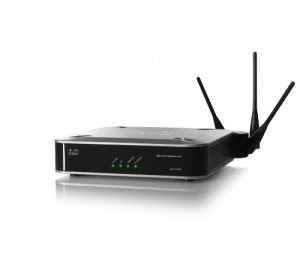 Data transmission through wireless channels are vulnerable to piracy. Anyone who is in the coverage area can access a wirelss network. In order not meudah hijacked another person, is required enkrispi to randomize the data sent on the wireless network. Wi-fi equipment are now providing sekurity technology options that can be used as needed.
What you have to do now is activate the security feature. following ways to activate it:
• Open your browser, then log into the IP access point.
• In the basic settings, go to wireless – wireless settings.
• Give a checklist on the options enabled wireless security
• On the security tyepe select the type of security that you want to use.
• At the security option, select the security model, if you do not want to elaborate just select Automatic.
• In the WEP Key format, specify the type of key that will be used, whether ASCII or Hexadecimal. Keuy in the form of letters to select ASCII.
• In the WEP Key field, enter the access point.
• Specify the encryption on the Key Type.
• Click Save to save it.
IT security needs to use a layered approach. While no single layer of security is enough to withstand every attack, each additional layer serves to further harden your system and discourage would-be attackers
and free-loaders. Here are six settings on your router which, if properly configured, will better protect your network, your computers, and your data.
1. Change the default password for the administrator account on your wireless router or access point. This is absolutely essential and should have been the very first thing you did after you unboxed it.
Don’t use a word in the dictionary or anything easily guessed.
2. Limit access to your wireless LAN by using MAC address filtering. A MAC address (also called the physical address) is an identifier unique to each network adapter. MAC address filtering involves looking up the MAC address of each device that will connect to the WLAN and adding them to a list in the router’s control panel. MAC addresses can be spoofed, so filtering shouldn’t be the only security method used.
3. Change your SSID (network name). A router’s default SSID (Service Set Identifier) can be used to identify your hardware, which could help a hacker determine the default administrator password (see step
1). A default SSID also suggests that the network was poorly configured, making it appear to be an easier target. Change it to something you and your family would recognize (your pet’s name, for example), but that’s not publicly identifiable (don’t use your name, your address, etc.).
4. Don’t disable SSID broadcasting Disabling SSID broadcasting will prevent casual browsers from finding your network, but it also means you will have to manually enter the name of your network on each device and your laptop will periodically ping your SSID. Not broadcasting your SSID does nothing to secure your network, it just makes it less obvious to your neighbors.
5. Use the strongest encryption form supported by your router and all of your other devices. The best choice is WPA2 with the “TKIP+AES” algorithm, which is the newest type of wireless encryption and
provides the highest level of encryption available. WPA2 has been available on most devices manufactured in the past few years. WPA-PSK, also called WPA-Personal, encryption is the next best, and 128-bit WEP is the weakest level of encryption and not very good, but better than nothing. Use a strong password, ideally a string of at 20+ random alpha-numeric characters.
6. Disable remote administration. The ability to remotely administer your WLAN router via the Internet should be turned off unless you absolutely need this. It is usually turned off by default, but it’s a good idea to check. The only downside to this is that you will have to physically connect a computer to the router in order to configure it, which isn’t necessarily a downside at all.
Hiding In the Network Access Point Wi-Fi
On the Wi-Fi access point SSID broadcast will make a regular basis, this feature is enabled for hot spots. Access points can be hidden to prevent people who do not want to know there is a wireless network in
your area.
To hide access points within the Wi-Fi in conducted in the following steps :
• Open the browser, then log into your ip access point
• In the basic settings, go to wireless – wireless settings.
• Checked uncheck the option Enable SSID Broadcast.
• Then click the save button.
Read More
any connected computer or wireless device. Encrypting the wireless traffic makes it more difficult for an unauthorized individual to extract information if your wireless signal is intercepted. The default type of encryption (WEP-Open) used by some wireless access points can be easily broken and decoded.
Data transmission through wireless channels are vulnerable to piracy. Anyone who is in the coverage area can access a wirelss network. In order not meudah hijacked another person, is required enkrispi to randomize the data sent on the wireless network. Wi-fi equipment are now providing sekurity technology options that can be used as needed.What you have to do now is activate the security feature. following ways to activate it:
• Open your browser, then log into the IP access point.
• In the basic settings, go to wireless – wireless settings.
• Give a checklist on the options enabled wireless security
• On the security tyepe select the type of security that you want to use.
• At the security option, select the security model, if you do not want to elaborate just select Automatic.
• In the WEP Key format, specify the type of key that will be used, whether ASCII or Hexadecimal. Keuy in the form of letters to select ASCII.
• In the WEP Key field, enter the access point.
• Specify the encryption on the Key Type.
• Click Save to save it.
IT security needs to use a layered approach. While no single layer of security is enough to withstand every attack, each additional layer serves to further harden your system and discourage would-be attackers
and free-loaders. Here are six settings on your router which, if properly configured, will better protect your network, your computers, and your data.
1. Change the default password for the administrator account on your wireless router or access point. This is absolutely essential and should have been the very first thing you did after you unboxed it.
Don’t use a word in the dictionary or anything easily guessed.
2. Limit access to your wireless LAN by using MAC address filtering. A MAC address (also called the physical address) is an identifier unique to each network adapter. MAC address filtering involves looking up the MAC address of each device that will connect to the WLAN and adding them to a list in the router’s control panel. MAC addresses can be spoofed, so filtering shouldn’t be the only security method used.
3. Change your SSID (network name). A router’s default SSID (Service Set Identifier) can be used to identify your hardware, which could help a hacker determine the default administrator password (see step
1). A default SSID also suggests that the network was poorly configured, making it appear to be an easier target. Change it to something you and your family would recognize (your pet’s name, for example), but that’s not publicly identifiable (don’t use your name, your address, etc.).
4. Don’t disable SSID broadcasting Disabling SSID broadcasting will prevent casual browsers from finding your network, but it also means you will have to manually enter the name of your network on each device and your laptop will periodically ping your SSID. Not broadcasting your SSID does nothing to secure your network, it just makes it less obvious to your neighbors.
5. Use the strongest encryption form supported by your router and all of your other devices. The best choice is WPA2 with the “TKIP+AES” algorithm, which is the newest type of wireless encryption and
provides the highest level of encryption available. WPA2 has been available on most devices manufactured in the past few years. WPA-PSK, also called WPA-Personal, encryption is the next best, and 128-bit WEP is the weakest level of encryption and not very good, but better than nothing. Use a strong password, ideally a string of at 20+ random alpha-numeric characters.
6. Disable remote administration. The ability to remotely administer your WLAN router via the Internet should be turned off unless you absolutely need this. It is usually turned off by default, but it’s a good idea to check. The only downside to this is that you will have to physically connect a computer to the router in order to configure it, which isn’t necessarily a downside at all.
Hiding In the Network Access Point Wi-Fi
On the Wi-Fi access point SSID broadcast will make a regular basis, this feature is enabled for hot spots. Access points can be hidden to prevent people who do not want to know there is a wireless network in
your area.
To hide access points within the Wi-Fi in conducted in the following steps :
• Open the browser, then log into your ip access point
• In the basic settings, go to wireless – wireless settings.
• Checked uncheck the option Enable SSID Broadcast.
• Then click the save button.